
Safety
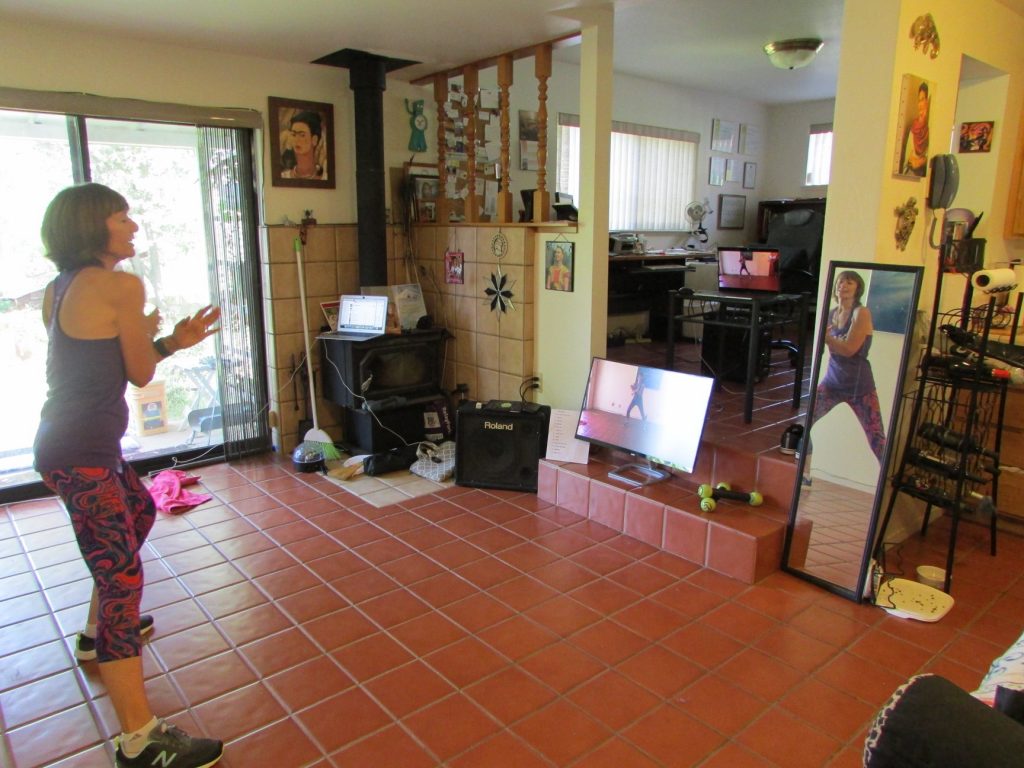
The most important factor to any fitness practice is safety. Getting injured is not worth whatever benefit you might have gotten otherwise. So please remember to take the class at your own pace. We progress our moves gradually moving from easiest level to more advanced in the course of most songs. You can stay at whatever level feels comfortable for you. Make sure you keep your balance and footing on whatever flooring you have.
On the subject of flooring, wood or vinyl-type floors are best for what we do, but carpet can be ok, if you remember to pick up your feet when you do twist-and-turn type moves. That way you put less stress on your joints.
Have some water and a towel handy as you will need to replenish your fluids several times during the class. And if you are like us, you will be sweating a lot!
By participating in our online classes, you agree and accept full responsibility for your own well-being, as spelled-out here.
Media Setup
There are a few technical suggestions we want to make that will help you have the best possible class experience, by setting up your workout space in an optimal way. If at all possible, you should do the following:
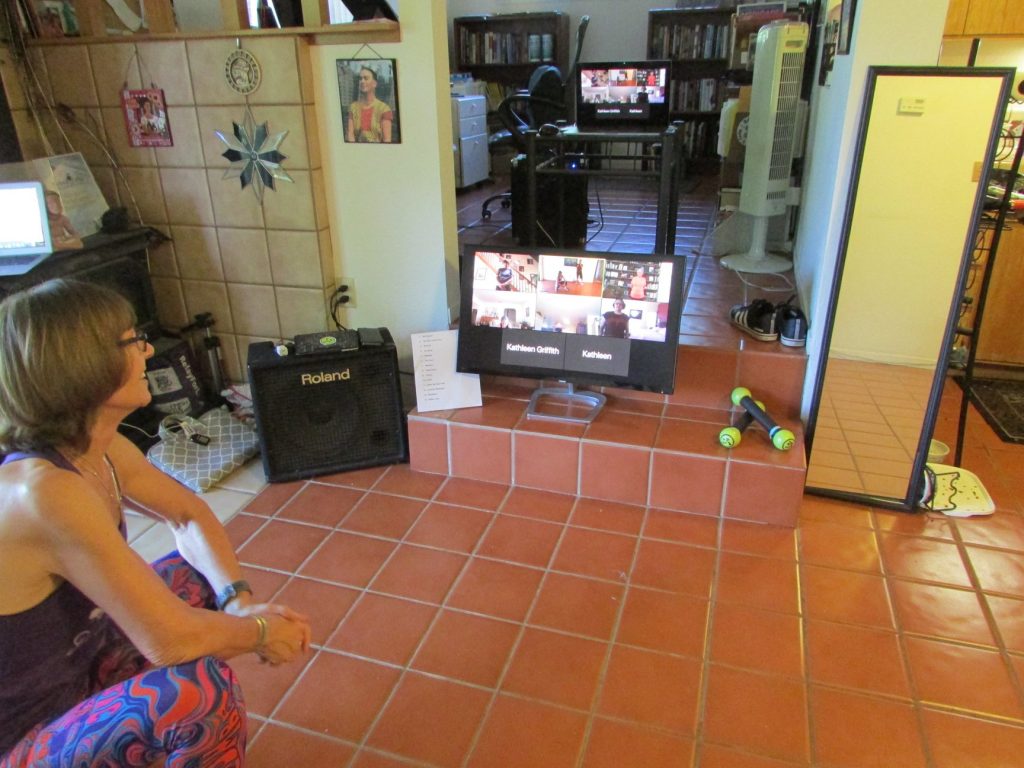
- Push aside furniture to give yourself as much room as possible. If you have an area rug in place, roll it up and make sure it is out of the way so that you do not trip on it.
- Place your computer/camera on a sturdy table about six to ten feet away from where you’ll be dancing (if you have that much room).
- Connect external speakers to your computer if you can. The sound quality they provide will help you enjoy the class and move much easier. If you can connect your computer display to a large screen (like your HD TV), it is also a great way to go. Tech tip: do not use Bluetooth but only a wired connection as Bluetooth will cause a delay that’ll mess up the synchronization.
- Download and install the Zoom software well in advance of the class. A day ahead if possible. You can test your camera and sound setup by going here. A fairly fast broadband internet connection is required as well.
- Log-in up to 15 minutes early to be able to troubleshoot any sound or video issues in advance of class-start. When logged-in, you can make the Zoom application go full-screen by clicking the icon in the top right of the window. You also have the option of Gallery View (all participants windows appear the same size) or Speaker View (the instructors appear in a large window and others are shown in small boxes at the top or side). The easiest way to get the Speaker View, is to double-click on the instructor’s window.
- After all of that, we expect you are going to end up having a lot of fun and a good workout. Let’s dance!